This article covers the process of manually upgrading the firmware on the Yealink WH64 Hybrid wireless headset running firmware version 19.430.0.30 or older.
This firmware update addresses USB Sampling Rate Optimization issues that cause stuttering or robotic-sounding audio due to timing mismatches between the headset and your PC.
Be advised that you may need assistance from your IT dept to download and install the Yealink USB connect app and the 19.430.0.45 firmware file.
Step 1
Download and install the Yealink USB Connect software from the link below:
https://support.yealink.com/product-detail/01985edc-4f5b-7b4a-ae4b-012d93b6150a?resourceType=0&categoryID=01985edc-514e-77eb-8878-90209ad757b6
https://support.yealink.com/product-detail/01985edc-4f5b-7b4a-ae4b-012d93b6150a?resourceType=0&categoryID=01985edc-514e-77eb-8878-90209ad757b6
Step 2
Connect your headset directly to the PC using a USB-C cable with the headset powered on with the power switch in the middle position.
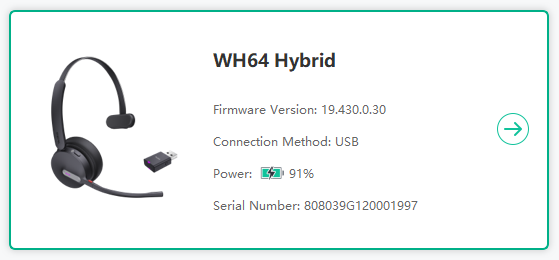
Open the USB Connect app, once it detects your connected headset, click on it.
Step 3
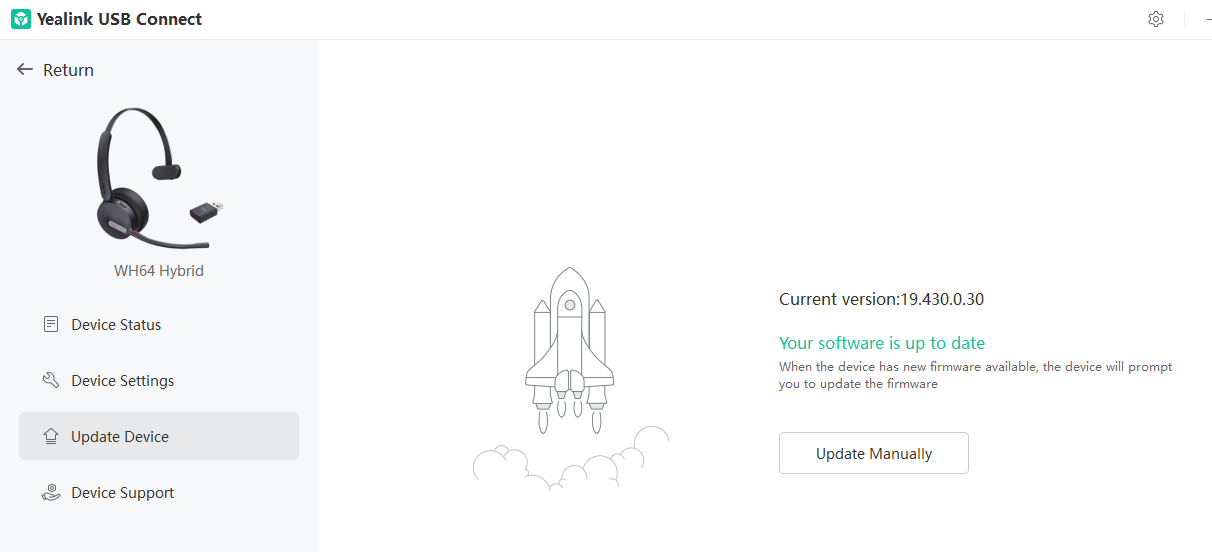
Click the Update Device button and confirm the current version. If it is 19.430.0.30 or lower, you will need to update to 19.430.0.45. See next step to download the firmware file.
Step 4
Follow the link below to download version 19.430.0.45:
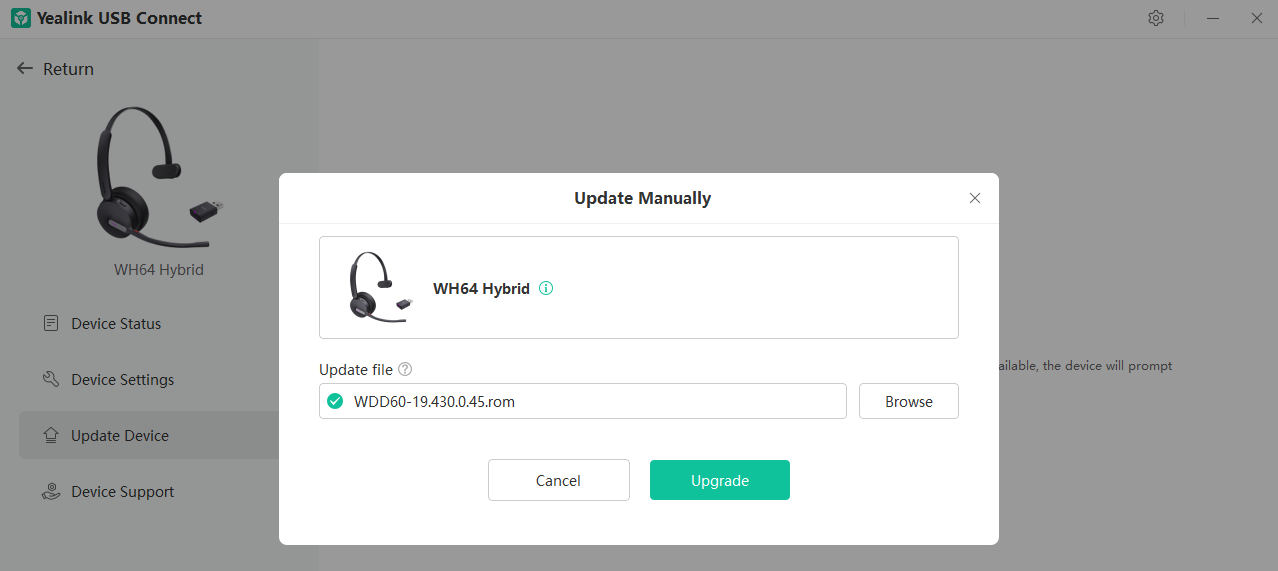
Once the file has been downloaded, open the USB Connect app and click on Update Manually.
Then click on the Browse button to locate and select the downloaded firmware file.
When the firmware file has been selected, click the Upgrade button.
Step 5
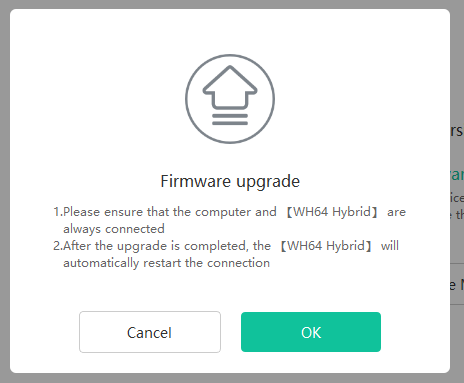
You will receive the following firmware upgrade notification.
When ready to perform the upgrade, click OK.
IMPORTANT: Please do not disconnect the headset from the PC during the upgrade process.
Step 6
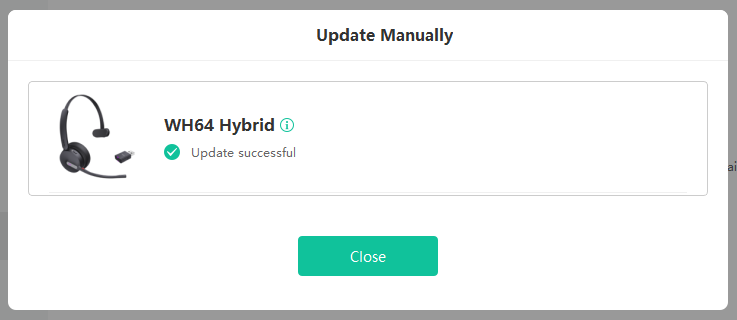
You will receive the following message once the upgrade is complete.
Click the Close button.
Step 7
Confirm your firmware version was updated to 19.430.0.45 in the USB Connect update device window.
Once confirmed, you may disconnect your headset and proceed with testing.
Was this article helpful?
That’s Great!
Thank you for your feedback
Sorry! We couldn't be helpful
Thank you for your feedback
Feedback sent
We appreciate your effort and will try to fix the article